 DocDSign
DocDSign.
From prepared to signed. In one clear flow.
Actual apps. Fictional demo data.
One document. Every step connected.
Prepare
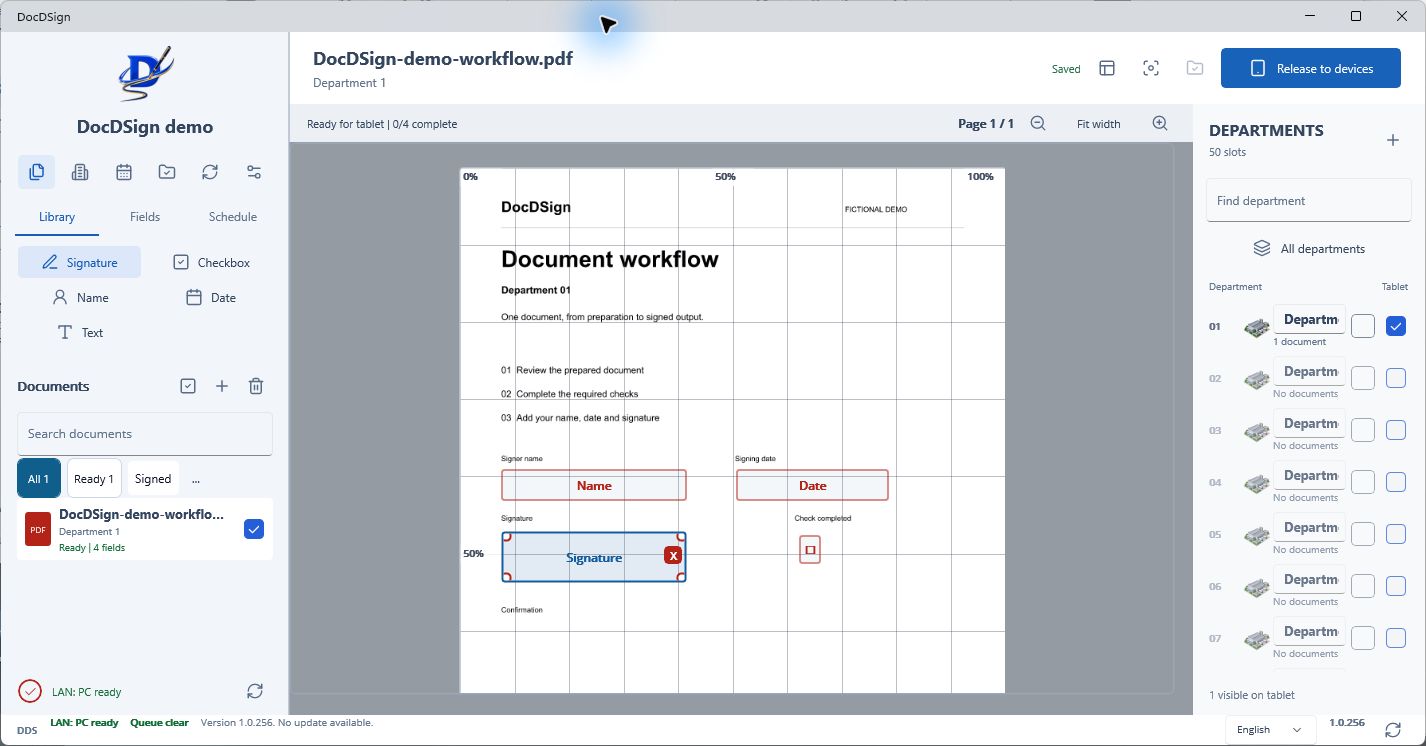
Document journey, text alternative
- Prepare the demo PDF and place signing fields in the Windows app.
- Send the same unsigned document to the Android device.
- The pen writes in the prepared signature field on the Android app.
- The signed document returns to the PC; its signed preview appears.
- Save the signed PDF in the selected department output folder.
- Optionally copy the already-signed PDF to Google Drive.
Ready when you are.
Downloaded documents remain available offline.
DocDSign.
Windows for preparation. Android for signing.
WindowsWindows 10 (1809+) or 11 · 64-bit
AndroidAndroid 5.0+ · Tablet and phone
Version 1.0.267
Release notes
Release information
Current release has owner-accepted limitations. The Windows installer has no publicly trusted publisher signature; Android uses the existing test signing key. Contact support before a customer rollout.
Your files. Your storage.
Choose your output folder on the PC. Signed PDFs are organised by department, year and named month.
Google Drive is optional storage for signed files, not the route for unsigned documents.
This website does not accept customer documents. Demo imagery uses fictional data; website assets are self-hosted and no analytics scripts are included.
Ready for your team?
Talk to us about licensing, installation and deployment. Confirm the current release limitations before rollout.